
Install Pliny in Chrome
Four short steps: add it, pin it, sign in, use it. You need Chrome on a computer.
-
Add it to Chrome
Open the Pliny listing in the Chrome Web Store, click the button at the top right, then confirm with Add extension.
Chrome will warn that Pliny can read and change data on websites. It needs that to work inside a text box. It stays dormant except on AI sites and sites you switch on yourself.
-
Pin Pliny to your toolbar
Click the puzzle piece to the right of Chrome's address bar, then the pin next to Pliny. Its icon now stays in view.
-
Sign in from the extension
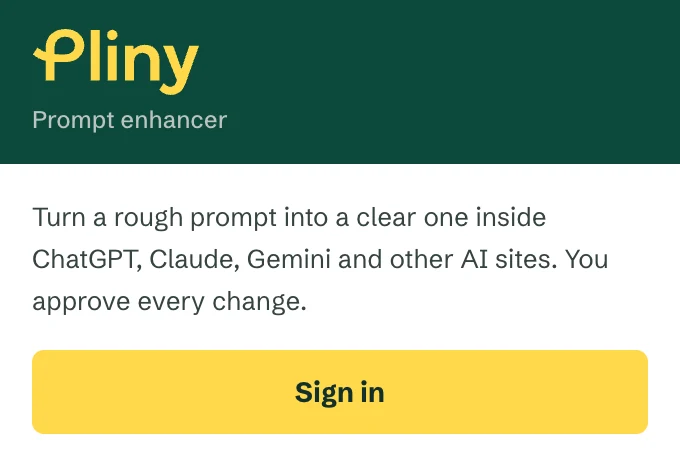
Click the Pliny icon, then Sign in. A usepliny.com tab opens. Continue with Google, GitHub or email, then click Allow. The tab closes itself.
New here? Create your account in that same tab. It is free and includes 5 rewrites a month.

If something goes wrong
- I can't see the Pliny button on the page
- Reload the tab. Pages that were open before you installed don't have Pliny yet. Then click inside the text box.
- It's not an AI site on the list
- Click the Pliny icon in the toolbar and choose “Enable on this site”.
- The shortcut does nothing
- Another app may own Alt + P . Choose a different one at chrome://extensions/shortcuts.
- Sign-in stopped or expired
- You have 10 minutes to finish. Click the Pliny icon and press Sign in again.
- I signed up with email
- Open the verification link in the same Chrome window. It carries on to the Allow screen.
- I want to disconnect
- Click the Pliny icon and choose Sign out. That revokes the extension's access to your account.
Still stuck? Email support@usepliny.com.